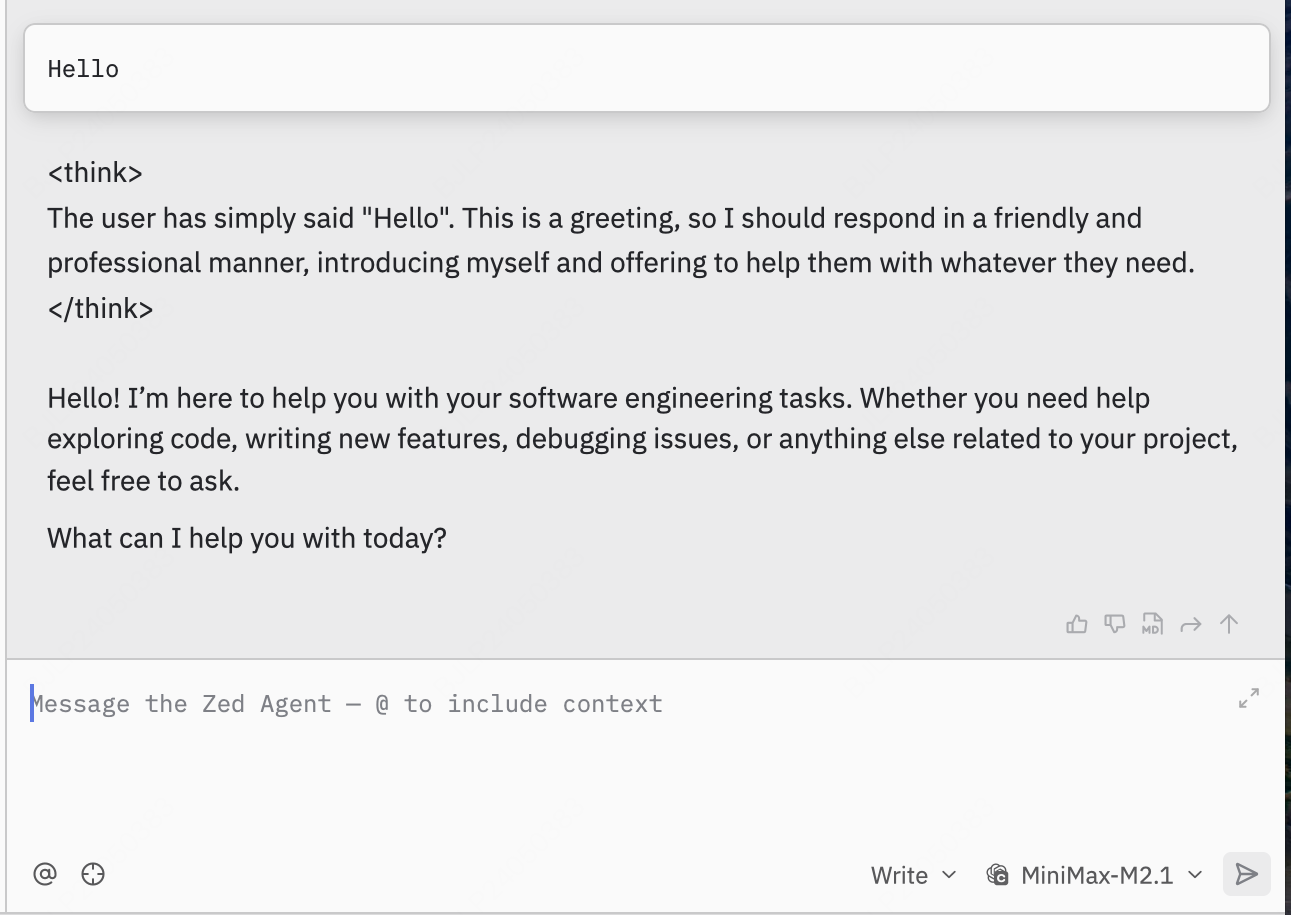
Install Zed
Follow the Zed official documentation to complete the Zed installation and configuration.Configure MiniMax API

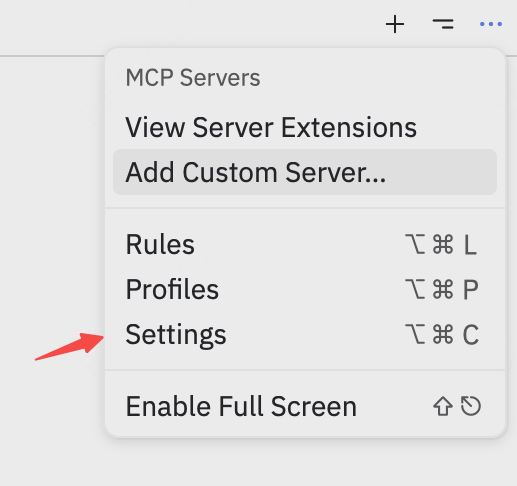
Add LLM Provider
Find the LLM Provider section, click +Add Provider and select OpenAI from the dropdown menu: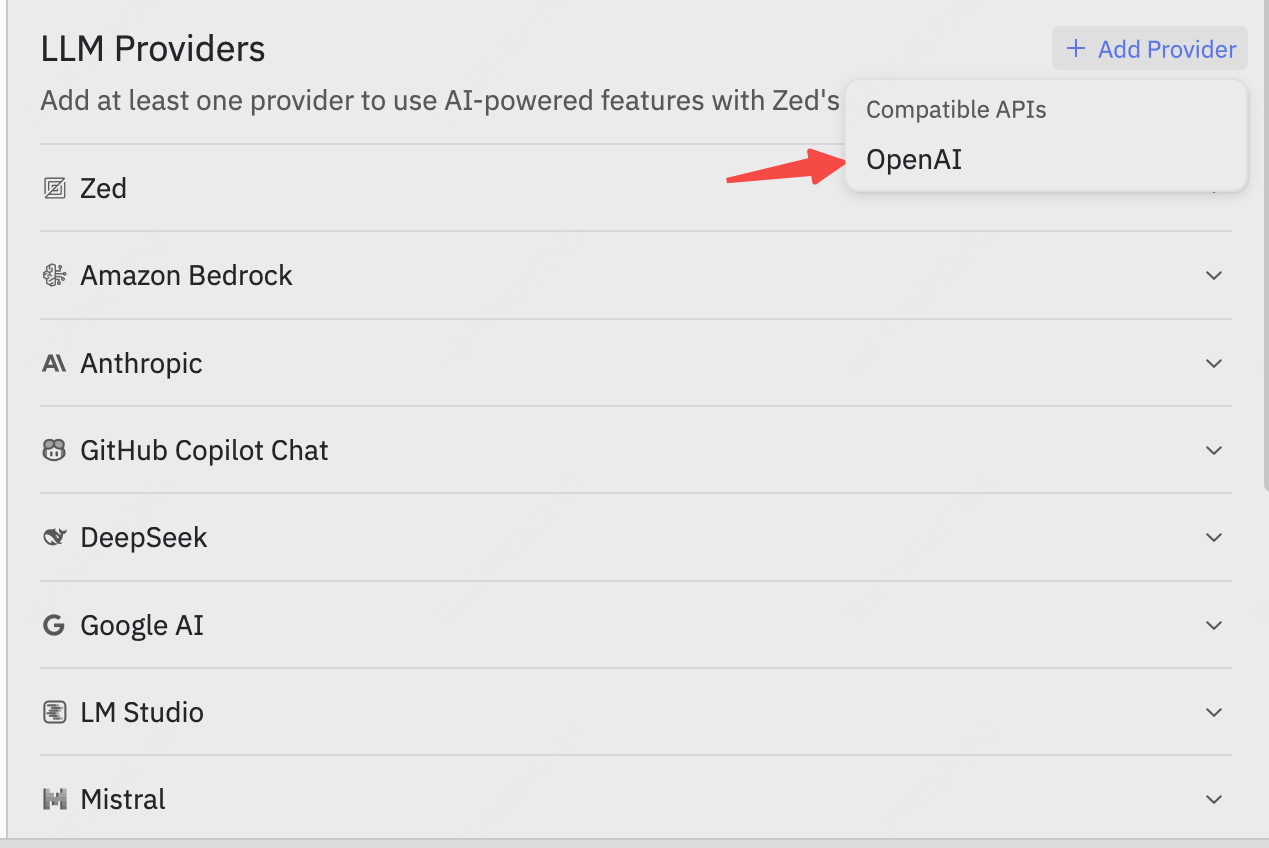
Fill in Configuration
Enter the configuration panel and fill in the following information:
Adjust other configurations according to your needs.Complete configuration reference: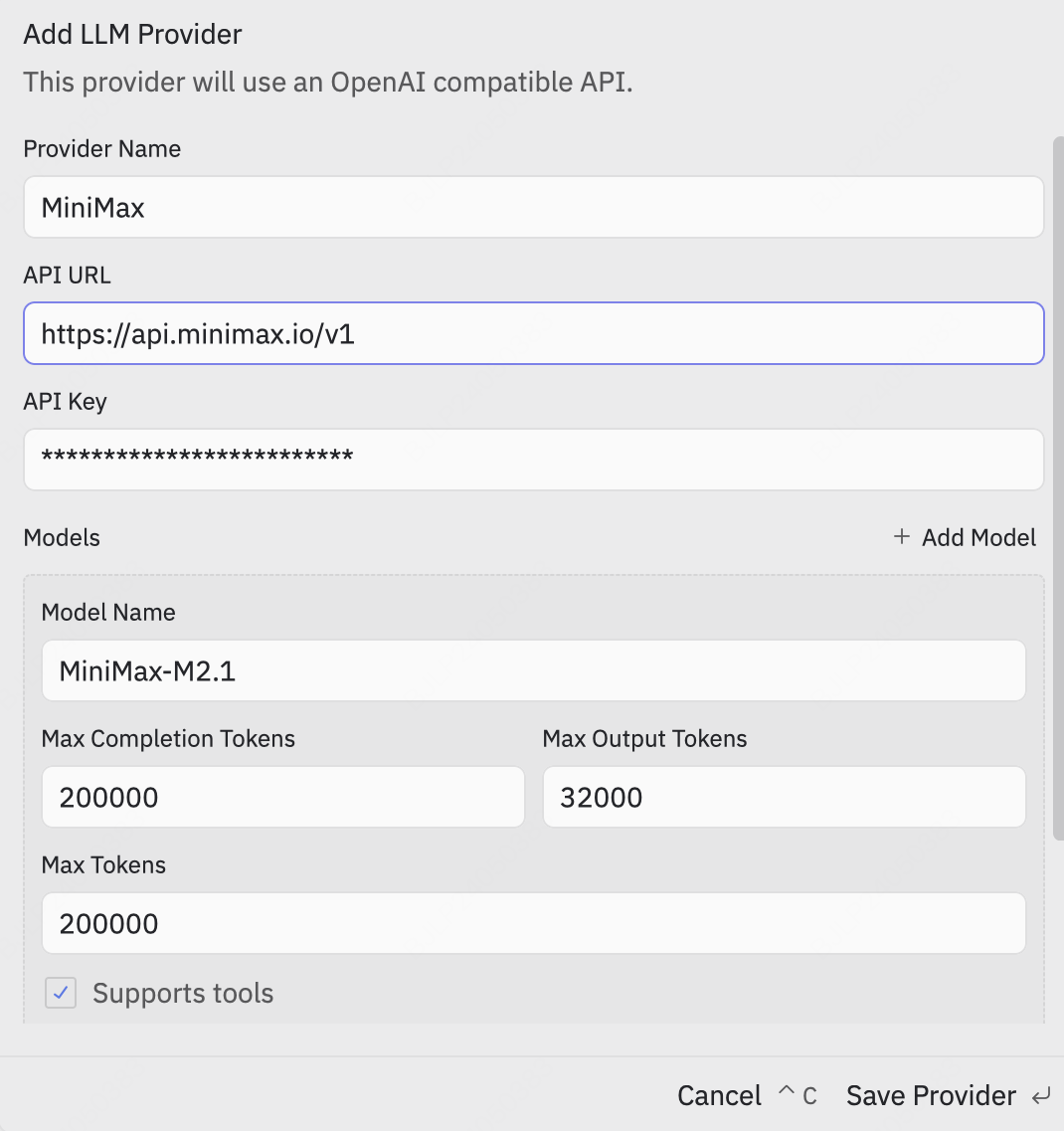
| Configuration | Value |
|---|---|
| Provider Name | Set as needed |
| API URL | https://api.minimax.io/v1 |
| API Key | Your API Key from the platform. Refer to Quick Start for details |
| Model Name | MiniMax-M2.1 |
Save Configuration
Click Save Provider to save. The LLM Provider now includes MiniMax. Click MiniMax, enter your API Key again, and press
Enter to save.