Install OpenCode

  • Use curl to install the OpenCode
curl -fsSL https://opencode.ai/install | bash
  • Use npm to install the OpenCode
npm i -g opencode-ai
For more information, please refer to the OpenCode website

Configure MiniMax API

1

Run Authentication Command

opencode auth login
2

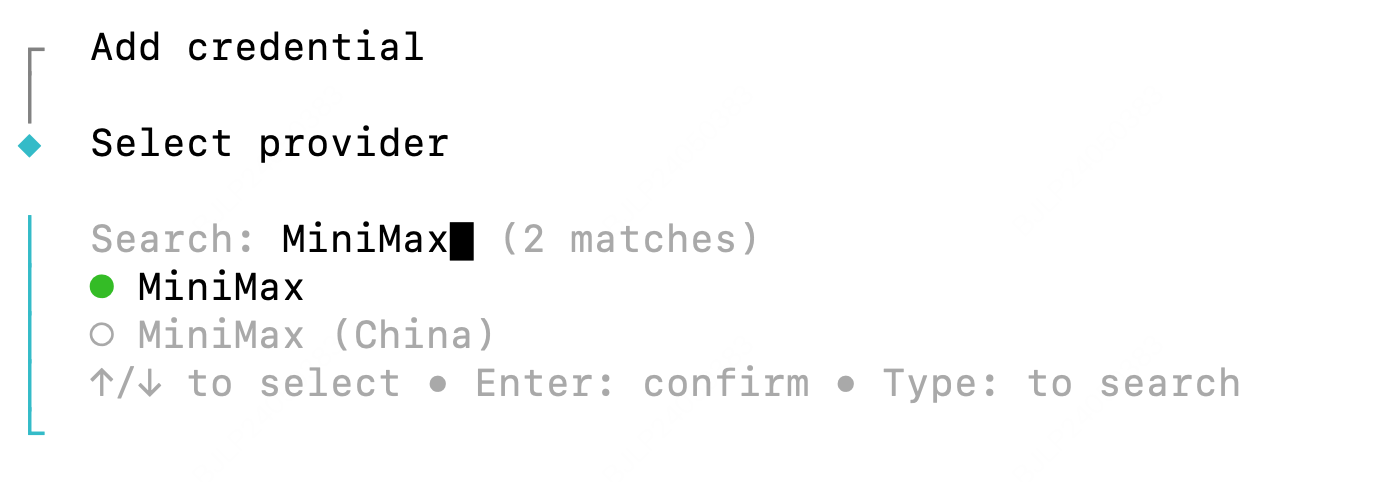
Select Provider

When prompted to select a provider, search and select MiniMax
3

Enter API Key

When prompted, enter your MiniMax API Key
4

Start Using

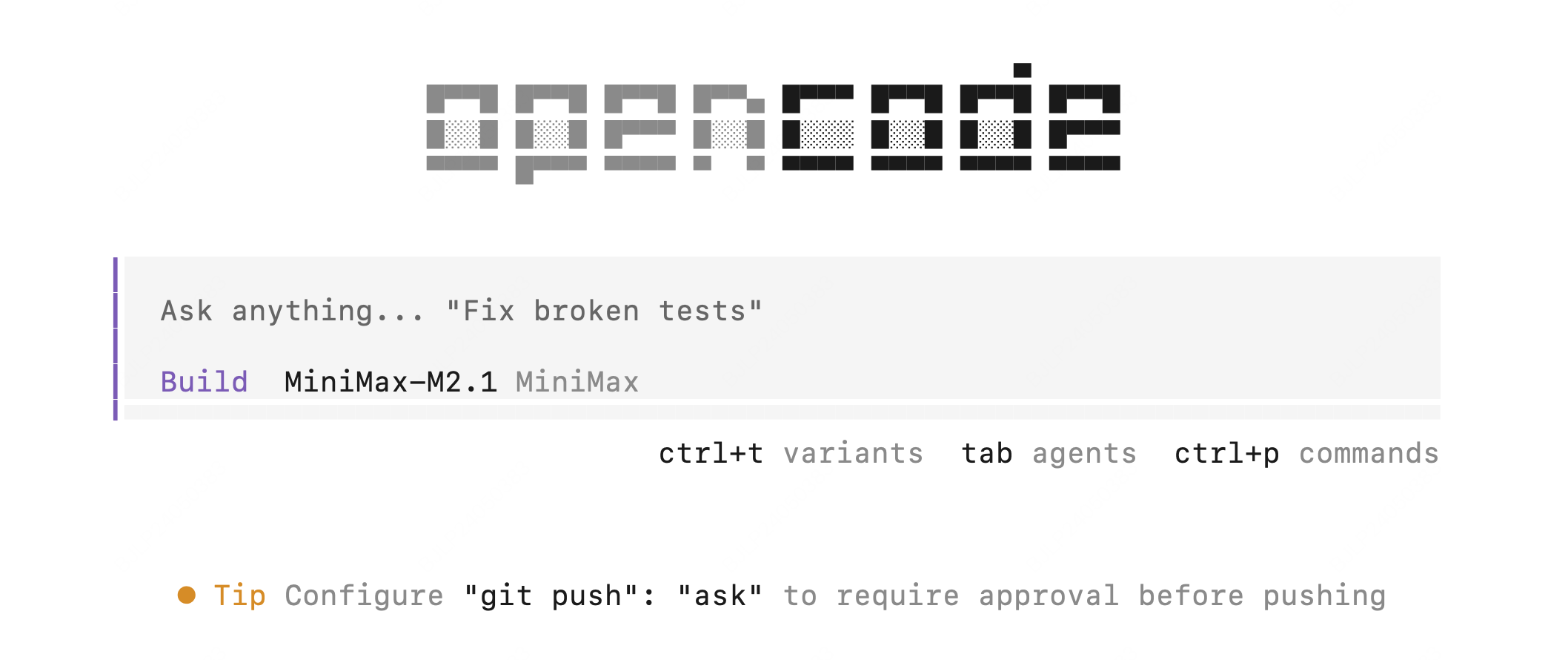
Return to the command line and enter opencode to start using MiniMax-M2.1
Alternative Configuration Method:
1

Edit Configuration File

Edit the OpenCode configuration file located at ~/.config/opencode/opencode.json, and add the following configuration:
Important: Clear Anthropic Environment Variables Before ConfigurationBefore configuring, ensure you clear the following Anthropic-related environment variables to avoid conflicts with MiniMax API:
  • ANTHROPIC_AUTH_TOKEN
  • ANTHROPIC_BASE_URL
{
  "$schema": "https://opencode.ai/config.json",
  "provider": {
    "minimax": {
      "npm": "@ai-sdk/anthropic",
      "options": {
        "baseURL": "https://api.minimax.io/anthropic/v1",
        "apiKey": "<MINIMAX_API_KEY> (Optional)"
      },
      "models": {
        "MiniMax-M2.1": {
          "name": "MiniMax-M2.1"
        }
      }
    }
  }
}
2

Start OpenCode

Navigate to your project directory and start opencode
cd /path/to/your/project

opencode
3

Select Model

Enter /models, select the “MiniMax-M2.1” model to start using it in OpenCode