

Documentation Index
Fetch the complete documentation index at: https://platform.minimax.io/docs/llms.txt
Use this file to discover all available pages before exploring further.
B
Blue
January 23, 2026
Introduction to Eigent
Eigent is the Open Source Cowork Desktop built on top of CAMEL-AI, with more than 10k Stars on GitHub.Core Features
- Multi-Agent Collaboration: Specialized Agents like Developer, Search, Document work in parallel
- Custom Agents: Support for creating custom Agents based on your needs
- Clear Task Monitoring: Clean and elegant interface for clearly monitoring the multi-Agent collaboration process
Quick Start
Step 1: Get MiniMax API Key
How to get:
- Users with Token Plan or Credits access can use Token Plan Key
- New users without subscription can try the free quota from Pay-as-you-go
Step 2: Download and Install Eigent
Step 3: Launch Eigent Application
Run the following command in the terminal to start the Eigent application:This article runs Eigent in self-hosted (community edition) mode. First-time users need to register on the Eigent website, then log in with your account in the local Eigent application.
First-time startup requires installing environment dependencies, which may take some time. Please be patient.
Step 4: Configure MiniMax M2.1 Model
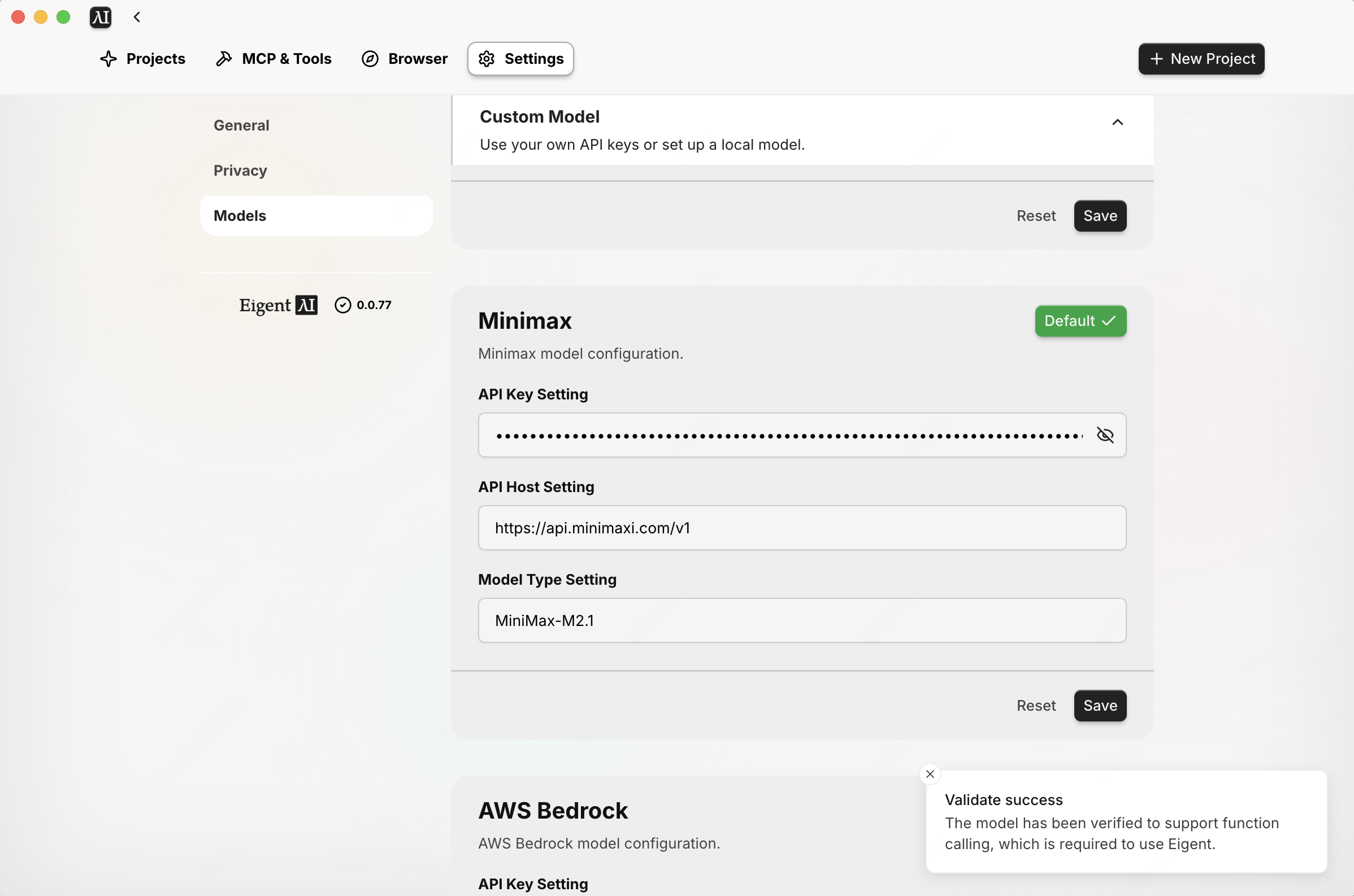
Click: Logo in upper left → Settings → Models tab to enter the model configuration interface.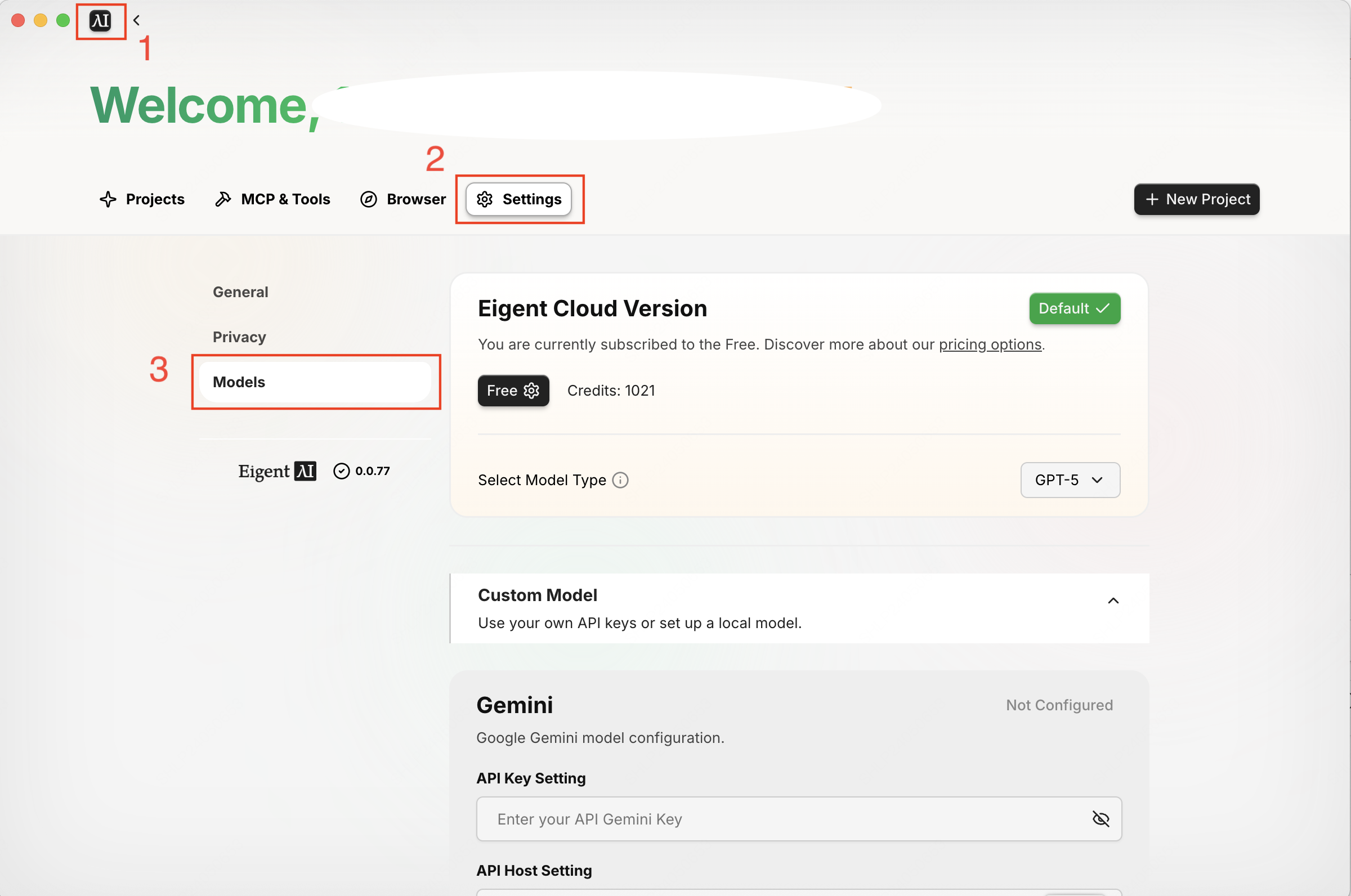 Scroll down to the MiniMax model configuration area and configure as follows:
| Configuration Item | Value |
|---|---|
| API Key Setting | Your MiniMax API Key |
| API Host Setting | https://api.minimax.io/v1 |
| Model Type Setting | MiniMax-M2.1 |
Step 5: Create Project and Start Task
Enter the Project interface, click the ”+” button in the upper right corner to create a new Project, and enter the new Project interface. Input your task requirements and send them to the Agent for execution.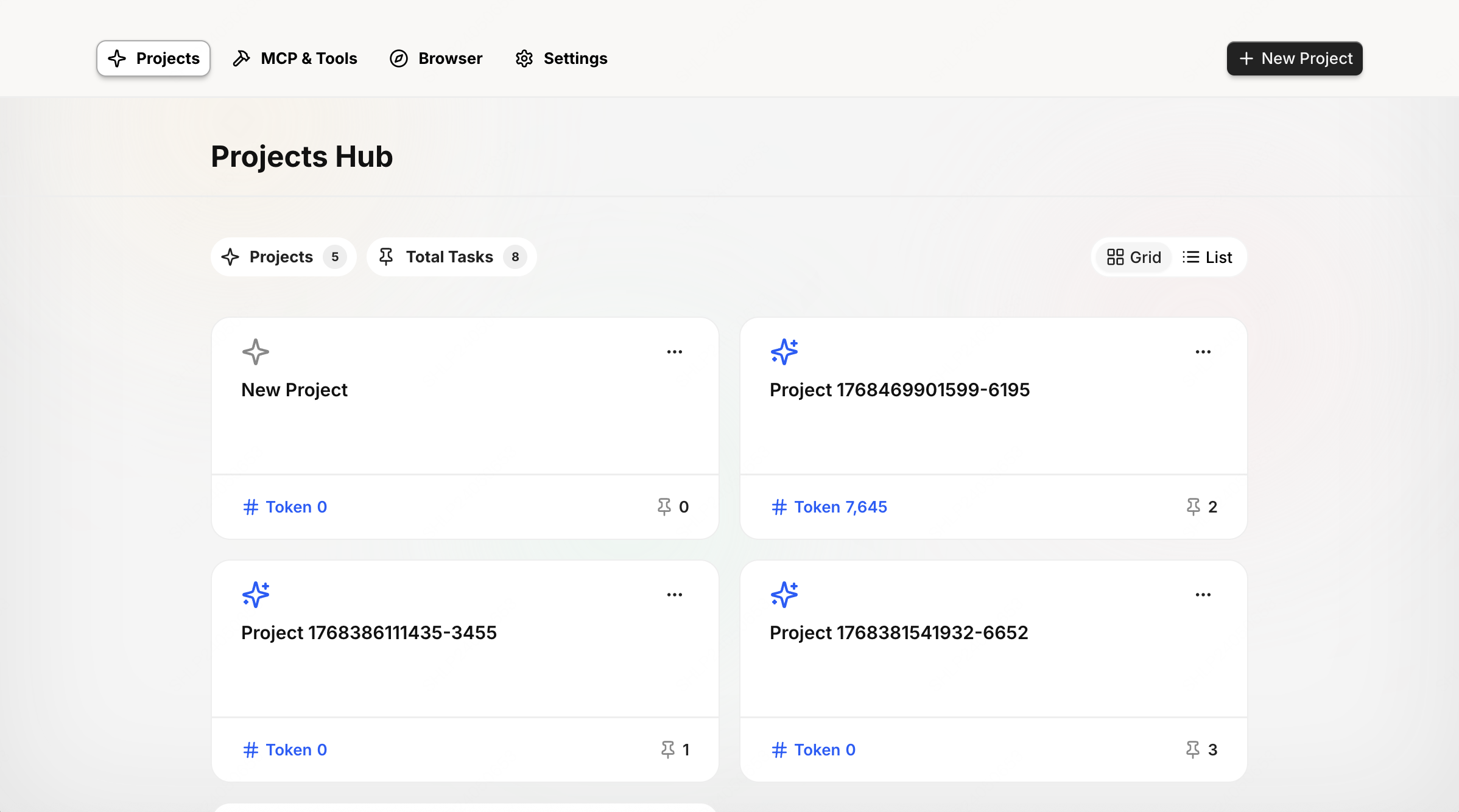
Demo
Task Requirements
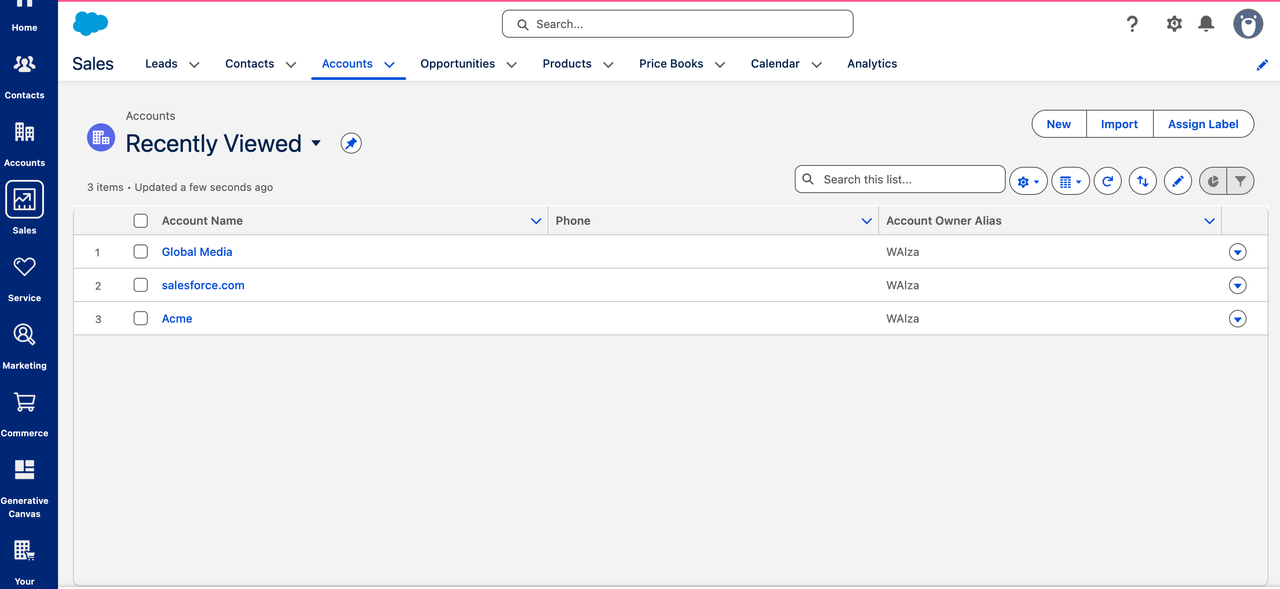
We will test the following task:“We have a new contact at Global Media - Jennifer Martinez (jennifer.m@globalmedia.com) is their new Senior Marketing Manager. Add her to our Salesforce and make sure she is connected to the right company.”
Task Execution Process
Phase 1: Task Planning
MiniMax M2.1 has built-in thinking capabilities. After the task requirements are sent in Eigent, it first performs deep reasoning to clarify the task requirements and goals.For this task, MiniMax M2.1 determines that decomposition is unnecessary, so it enhances the prompt for the current task instead.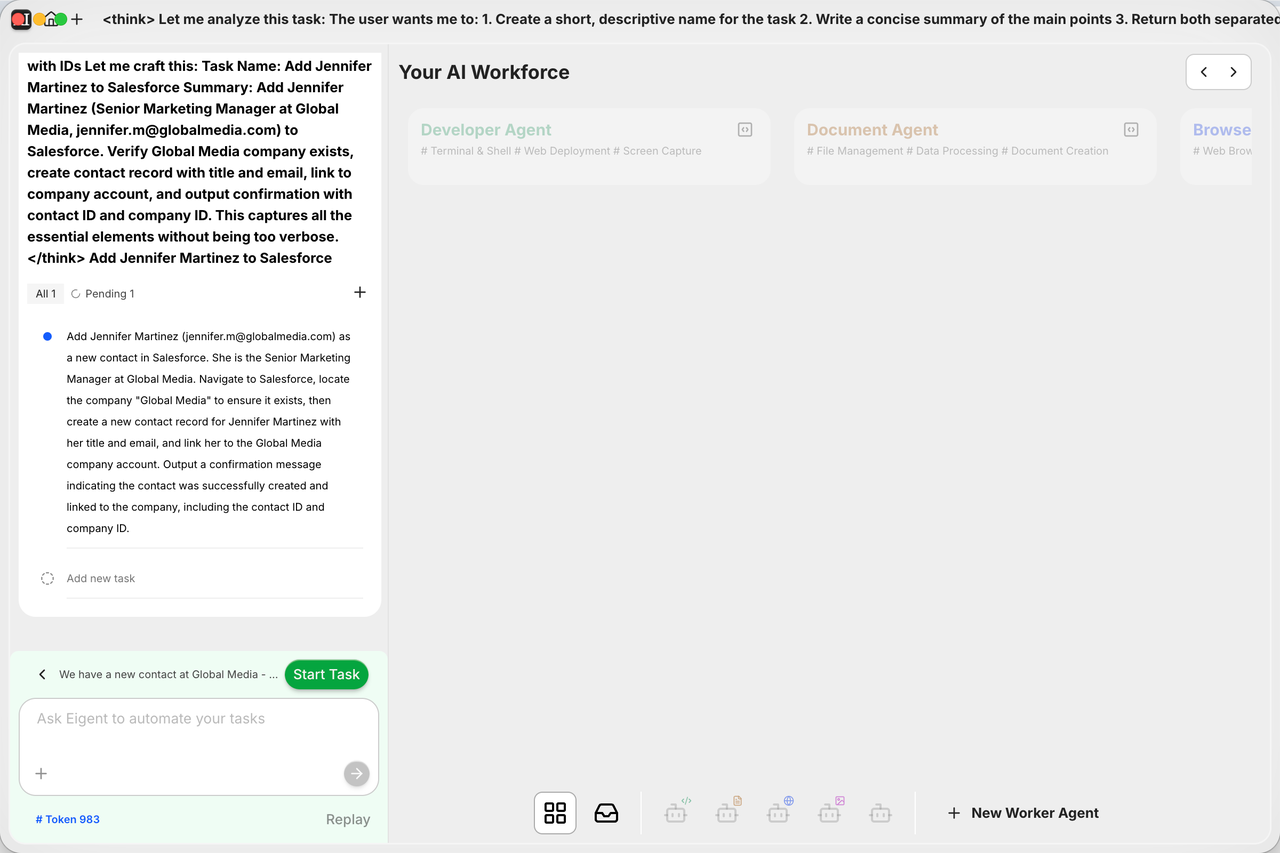
Phase 2: Browser Use
Based on task planning, the MiniMax M2.1 model acts as a Browser Agent calling browser tools to conduct tasks and perform automated form filling.In this task, MiniMax M2.1 operated within a complex Salesforce interface to add a new contact, Jennifer Martinez (Senior Marketing Manager), to Global Media and ensure she was correctly associated with the right account.This required: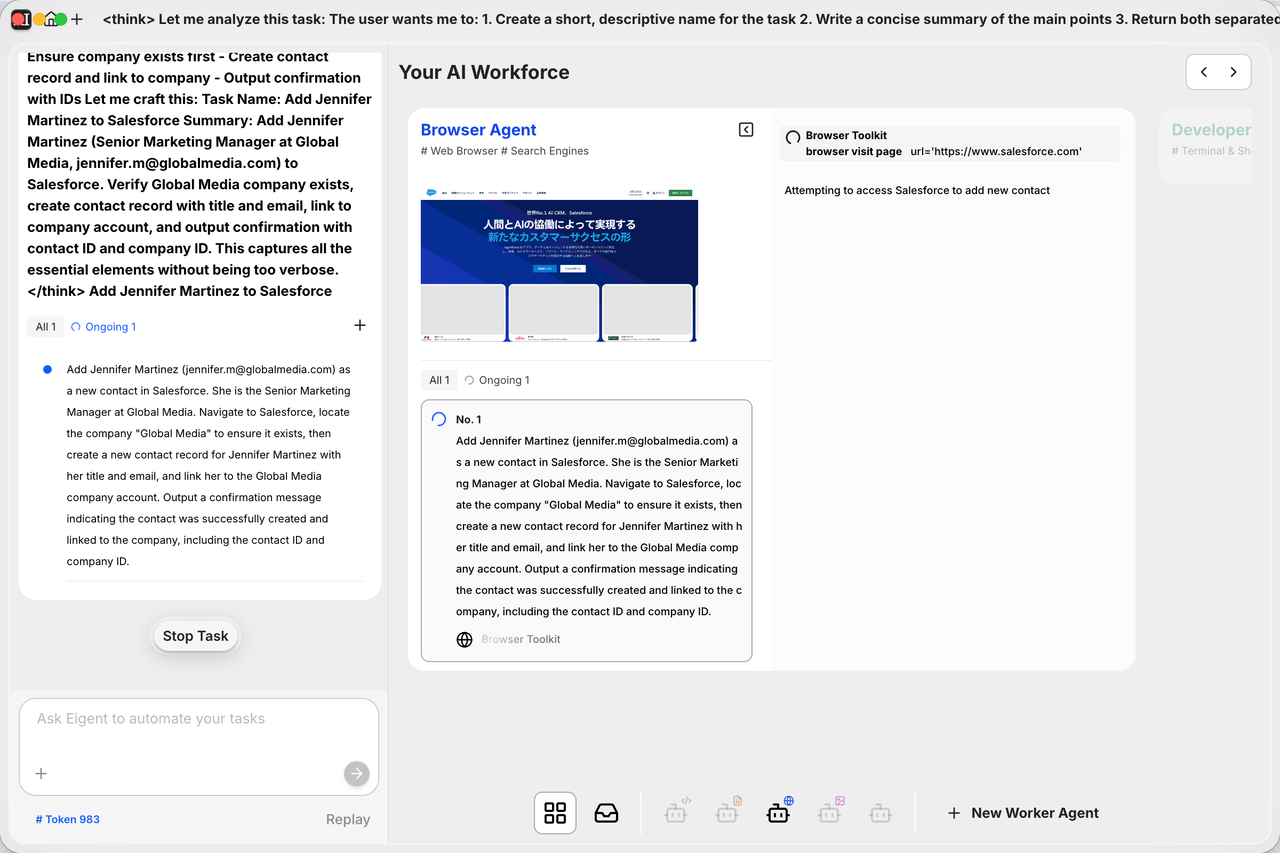
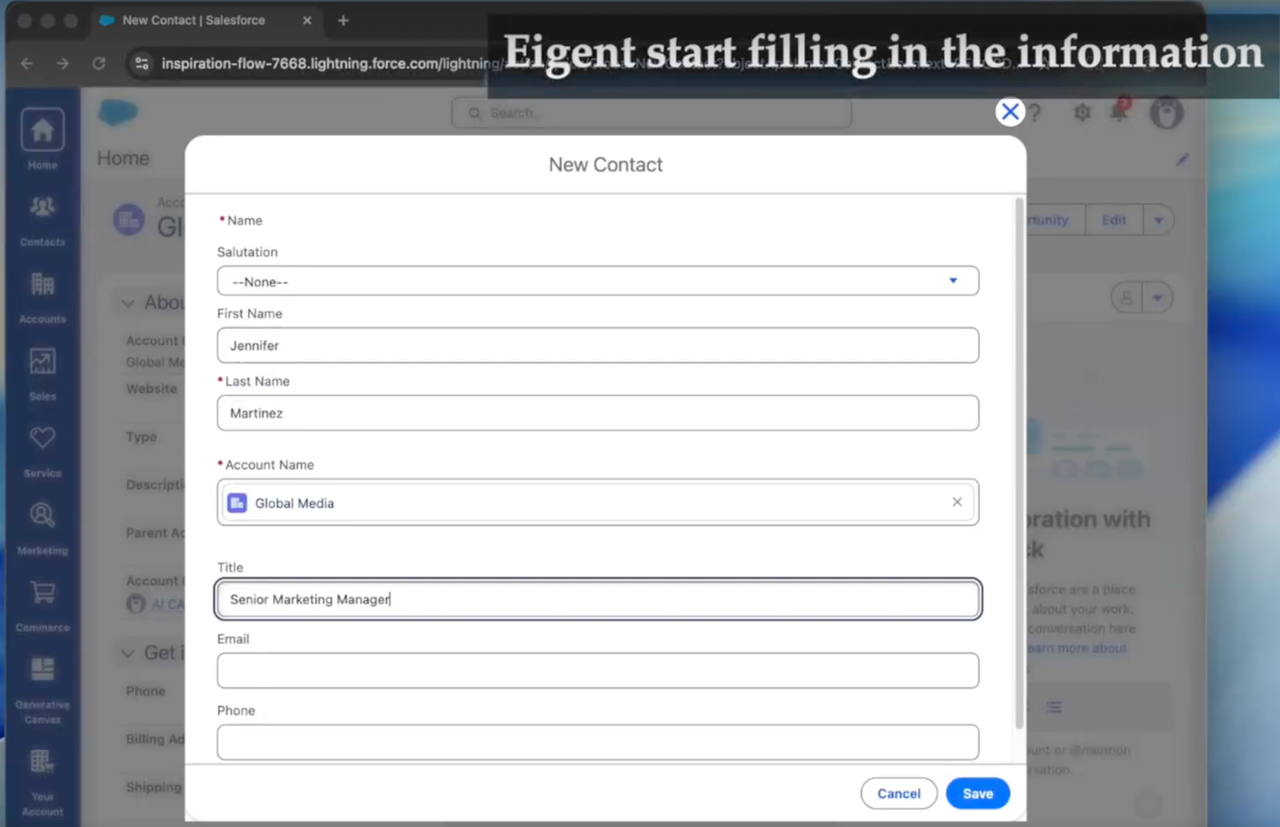 The results show that MiniMax M2.1 executed every step accurately without mis-clicks or workflow breakdowns. This demonstrates the model’s strong capability in understanding complex enterprise UIs, planning multi-step actions, and reliably executing end-to-end tasks.
- Navigating multiple UI layers
- Identifying the correct entry points
- Creating the contact
- Populating key fields
- Validating the account linkage
The results show that MiniMax M2.1 executed every step accurately without mis-clicks or workflow breakdowns. This demonstrates the model’s strong capability in understanding complex enterprise UIs, planning multi-step actions, and reliably executing end-to-end tasks.Summary
In this tutorial, we showed how to integrate the MiniMax M2.1 model into Eigent, an open-source Cowork, to complete complex tasks:- MiniMax M2.1’s reasoning capability enables it to autonomously plan and execute steps for complex tasks
- Eigent supports parallel form filling, enabling multiple items to be completed at the same time, and delivers a cowork-for-enterprises experience with significantly improved efficiency
- Ultimately, MiniMax accurately completed every item throughout the process, fully demonstrating MiniMax M2.1’s outstanding performance in long-horizon planning tasks
Related Resources
MiniMax M2.1
Detailed Model Introduction
Eigent GitHub
Open Source Project
MiniMax Platform
Get API Key