Oh My Pi is an open-source terminal coding agent built on Pi, with integrated LSP, code editing, and subagents.
Option 1: One-click setup wizard
Option 2: Manual setup
Run:
npx -y mmx-cli@latest agent setup
Select Oh my Pi (omp). If it is missing, keep Oh my Pi selected in the second multi-select. The wizard runs the official installer, checks omp --version, and adds MiniMax models to Oh My Pi’s models and defaults.Then launch Oh My Pi directly:
Edit or create ~/.omp/agent/models.yml (user directory\.omp\agent\models.yml on Windows), replacing <MINIMAX_API_KEY> with your Subscription Key. If the file already contains other providers, merge minimax into the existing providers mapping.
This example uses the Anthropic-compatible protocol and sets the client context window to 512K (524288 tokens). See the 512K configuration guidance. Thinking is always enabled for MiniMax-M3.1-Flash-Preview and cannot be disabled.
3
Verify and launch
Run the following commands to confirm that MiniMax-M3.1-Flash-Preview appears in the model list, then launch it:
To save it as the default, enter /model in a session and assign the model to the default role. For more options, see the Oh My Pi model configuration docs.
Chatbox is a free, open-source, cross-platform AI client supporting advanced LLMs, custom API keys (BYOK), and AI agents across desktop, mobile, and web.
Grok CLI is an open-source terminal coding agent that connects to xAI’s Grok and OpenAI-compatible providers.
Not recommended for Agent workflows — use Claude Code or Cursor for best results.
First clear the OPENAI_API_KEY and OPENAI_BASE_URL env vars.
Option 1: One-click setup wizard
Option 2: Manual setup
Run:
npx -y mmx-cli@latest agent setup
Select Grok CLI. If it is missing, keep Grok CLI selected in the second multi-select. The wizard runs the official Grok Build installer, checks grok --version, preserves unrelated settings, and adds a MiniMax model to ~/.grok/config.toml.Run grok when setup finishes.
1
Install Grok CLI
npm install -g grok-dev
2
Set env vars and launch
export GROK_BASE_URL=https://api.minimax.io/v1export GROK_API_KEY=sk-cp-... # from M Plangrok --model MiniMax-M3.1-Flash-Preview
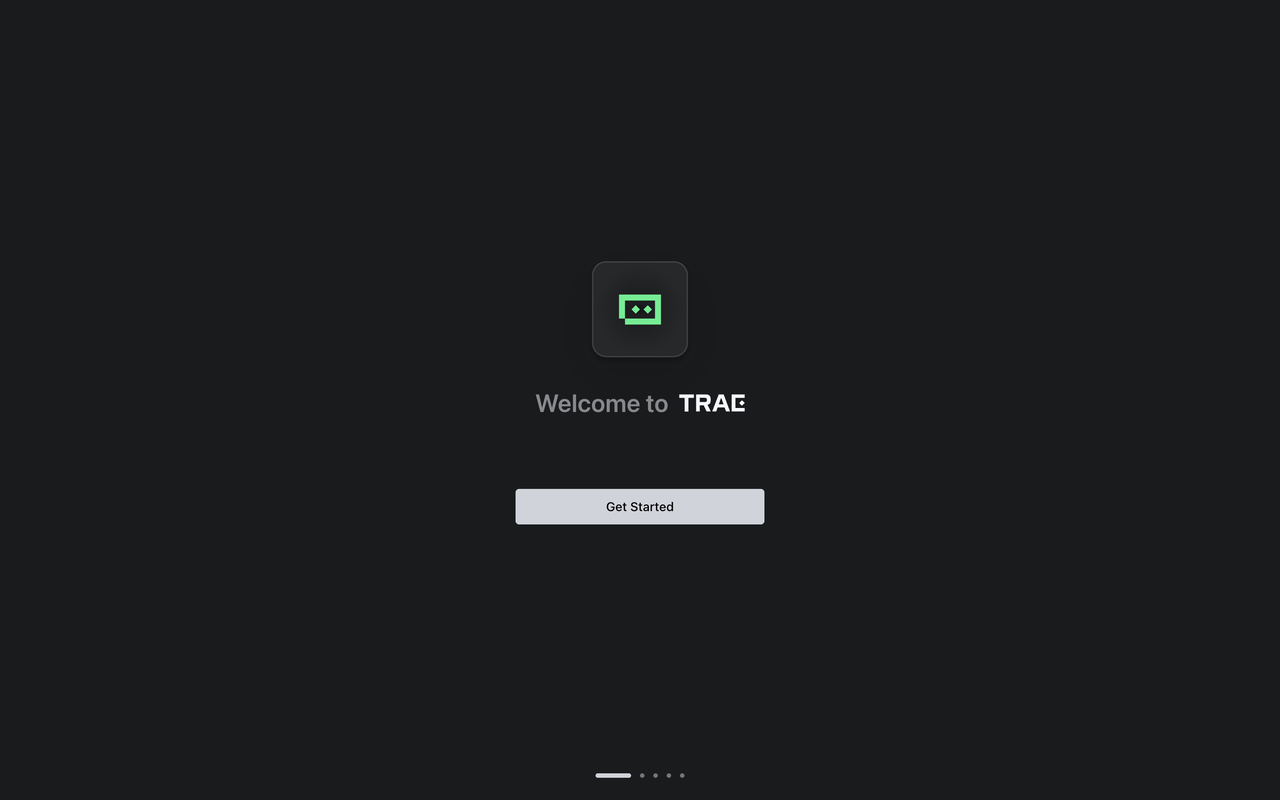
Click TRAE’s icon to launch it. The following screen appears at TRAE’s first launch
3
Start Setup
Click the Get Started button, TRAE’s setup beginsFor detailed installation steps, please refer to: Trae Setup Guide
Configure MiniMax API
Important: Clear OpenAI Environment Variables Before ConfigurationBefore configuring, ensure you clear the following OpenAI-related environment variables to avoid conflicts with MiniMax API:
OPENAI_API_KEY
OPENAI_BASE_URL
In TRAE, connect to MiniMax-M3.1-Flash-Preview with your M Plan Subscription Key.
1
Open Settings
At the top right of the side chat box, click Settings icon > Models
2
Select Models Tab
Switch to the Models tab.
3
Add Model
Click the + Add Model button. The Add Model pop-up appearsEnter Configuration Details: